
Planning Center is one of the most popular church management platforms in the United States. The single biggest source of confusion is that it has two completely separate logins for two different groups of people:

- Planning Center — for church staff, admins and volunteers who run ministry tools (People, Services, Giving, Check-Ins, Groups). Uses an email and password.
- Church Center — for members of the congregation who give, register for events, or join groups. Uses a passwordless code — no password at all.
Here’s how each one works.
Church member sign-in (Church Center)
If you’re a regular church member:
- Go to your church’s Church Center web address, which looks like yourchurch.churchcenter.com (or search for your church at churchcenter.com).
- Click Log in and enter your mobile number (or choose “Use email address instead”).
- Enter the six-digit verification code sent to you by text or email, confirm your name, and you’re in. There is no password to remember.
Codes are texted from 360-552-7771 or 855-956-4353 — so don’t mistake them for spam. Outside the US and Canada you must use the email option rather than a phone number.
Church staff / admin sign-in (Planning Center)
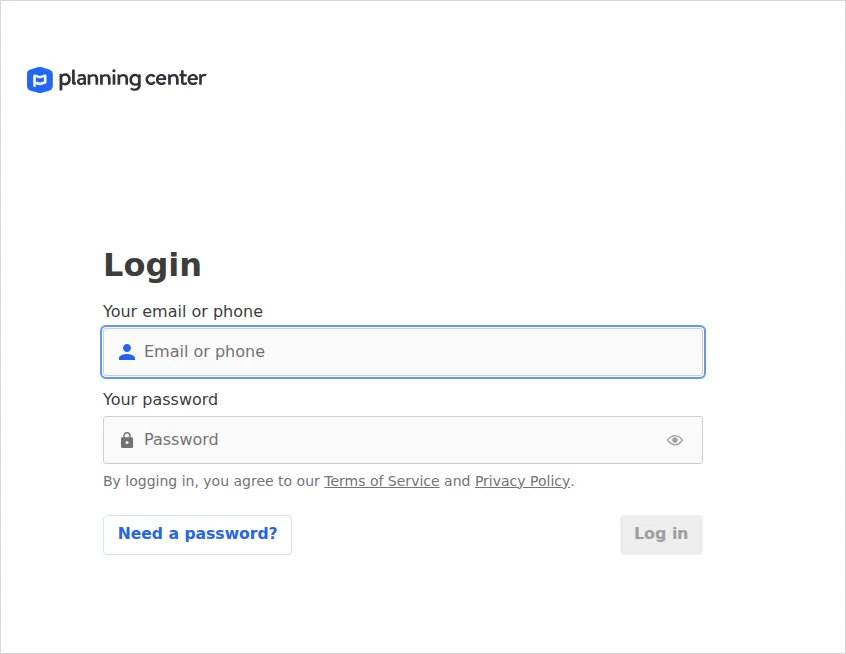
- Go to login.planningcenteronline.com.
- Enter your email (or phone) and your password, then click Log in.
- First time, or no password yet? Click Need a password?, enter your email, get a code, and set your password.
The mobile apps
- Members: download the Church Center app (iOS and Android) — sign in with your phone number and code, exactly like the web.
- Staff: the unified Planning Center app (launched 2026) gives admins every product in one place; the separate Planning Center Services, People and Check-Ins apps still exist too.
Common problems & fixes
- Which login am I? If you give or register for events, use Church Center. If you manage ministry tools, use planningcenteronline.com.
- Didn’t get the member code? Make sure your church has your correct phone/email on file, then request a new code.
- Forgot your staff password? Use Need a password? on the login page to reset it. (Members have no password, so this never applies to Church Center.)
- No staff access yet? An administrator at your church has to add you and grant permissions — support can’t do it for you.
For more, see the official Planning Center Help Center.
Stay safe: This is an independent how-to guide — we are not affiliated with the platform. Only ever enter your username and password on the platform’s official domain (linked above). We never ask for your login details.





Comments