
Pushpay is one of the most widely used church giving and management platforms in the United States, used by thousands of churches. There are two different ways to sign in depending on who you are — a church member/donor, or a church administrator. This guide covers both.

Church member / donor sign-in
If you give to your church through Pushpay or manage your personal giving:
- Go to the official site, pushpay.com.
- Click Sign In in the top-right corner, then choose Personal Sign In.
- Enter your mobile phone number.
- Pushpay texts you a one-time code — enter it to sign in. (Pushpay uses your phone number, so most members don’t need a password.)
Many churches also have their own branded Pushpay app. If your church gave you an app, you can sign in there the same way — with your phone number and the texted code.
Church administrator sign-in
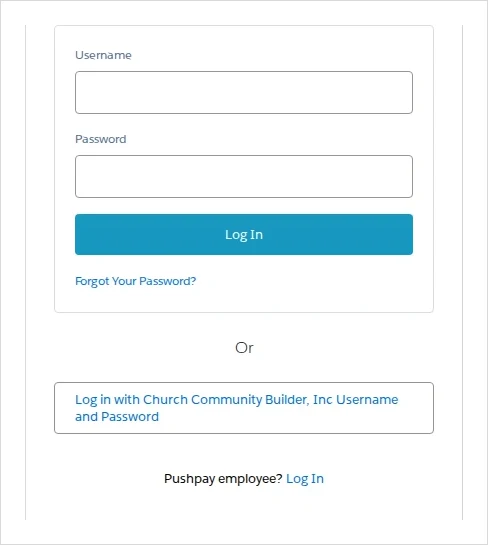
If you are church staff using ChurchStaq, ParishStaq, Pushpay Giving, or the ChMS (Church Community Builder), you use the admin portal — a different login from members:
- Go to the admin login page: chms.pushpay.com/login (Church Community Builder).
- Enter your administrator username and password.
Common problems & fixes
- Didn’t get the text code? Double-check the phone number on file with your church, then request a new code. Codes expire after a few minutes.
- Not sure which login you need? If you only give money, use the member sign-in. If you manage the church database/giving, use the admin portal.
- Forgot your admin password? Use the “Forgot password” link on the admin login page to reset it.
For more help, Pushpay has an official Help Center for both members and administrators.
Stay safe: This is an independent how-to guide — we are not affiliated with the platform. Only ever enter your username and password on the platform’s official domain (linked above). We never ask for your login details.




Comments